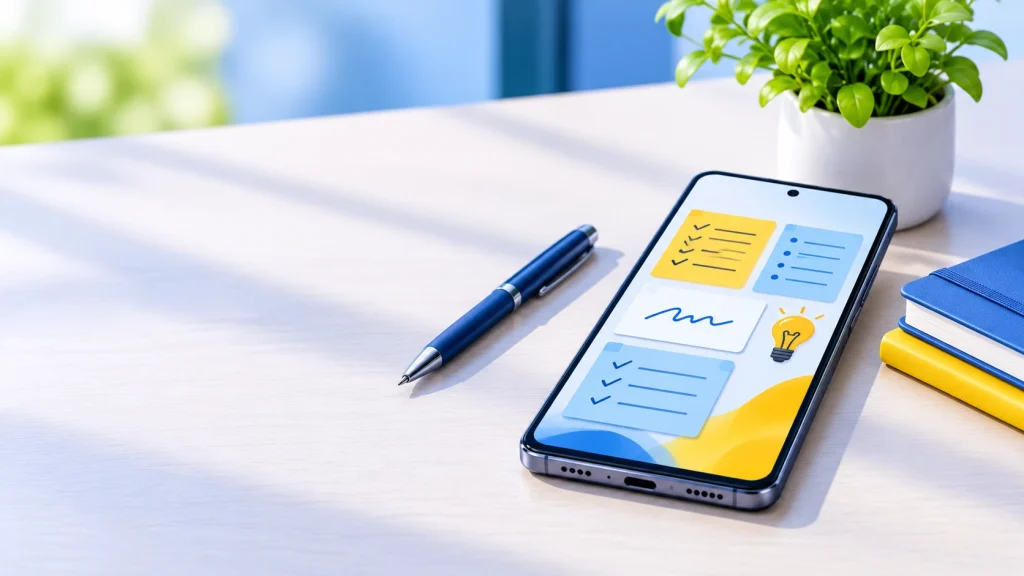
Android has a huge choice of note apps, from a simple sticky note to a full workspace. The right one depends on how you take notes: quick jots, long documents, handwriting with a stylus, or a linked knowledge base. This guide compares the apps people actually use, with pricing checked in November 2026.
Quick verdict: Google Keep is the best for fast, free notes. Microsoft OneNote is the best all-rounder. Samsung Notes wins on Galaxy phones and tablets with an S Pen, Notion suits organized workspaces, and Obsidian is best for private, local-first notes.
Quick picks
| App | Best for | Price | Works offline |
|---|---|---|---|
| Google Keep | Quick notes and reminders | Free | Yes |
| Microsoft OneNote | Best all-rounder | Free | Yes |
| Samsung Notes | Handwriting on Galaxy devices | Free on Samsung devices | Yes |
| Notion | Projects and databases | Free plan; paid plans from about $10/month | Limited |
| Obsidian | Private, local Markdown notes | Free; optional paid Sync | Yes |
| Joplin | Open-source Evernote alternative | Free | Yes |
The best Android note-taking apps, reviewed
1. Google Keep: best for quick notes
Keep is completely free and ideal for fast notes, checklists and reminders, with no cap on the number of notes. It comes pre-installed on most Android phones, supports colors, labels, voice notes and drawings, and works offline.
Watch out for: limited formatting and organization. It is not built for long documents.
2. Microsoft OneNote: best all-rounder
Cloudwards named OneNote its top overall pick for Android. It is free, supports typed text, drawings, images and audio on a freeform canvas, and works with Microsoft’s other apps. Extra storage comes through a Microsoft 365 plan.
Watch out for: notes are not end-to-end encrypted, and it lacks Markdown without add-ons.
3. Samsung Notes: best for handwriting on Galaxy
Samsung Notes comes preloaded on Galaxy phones and tablets and is the strongest choice if you write by hand with an S Pen. It is free on Samsung devices.
Watch out for: it is tied to Samsung hardware, with no companion app on iOS, Windows or Mac, so it is a poor fit if you use non-Samsung devices.
4. Notion: best for projects and databases
Notion is more of a workspace than a notes app, with databases, wikis and team collaboration. The free plan works for personal use with limits, such as a 5MB per-file upload cap, and paid plans add collaboration and AI features.
Watch out for: it needs an internet connection to work properly, and it feels heavier on a phone than a simple notes app.
5. Obsidian: best for privacy and offline use
Obsidian stores your notes as plain Markdown files on your device, so they stay local unless you choose paid sync. It is free for personal use, and its Sync add-on costs around $5 to $8 per month depending on the source and plan.
Watch out for: there is a learning curve, and mobile setup is more hands-on.
6. Joplin: best open-source option
Joplin is a free, open-source Evernote alternative that supports Markdown, local storage and sync through services such as Dropbox or OneDrive.
Watch out for: the interface is plainer than commercial apps.
Also worth a look: Evernote
Evernote has templates and strong organization, but its free plan is limited to 50 notes and most features need a paid plan.
Best free note-taking apps for Android
Free does not always mean useful, because free plans often hit limits. Here is what each free tier covers.
| App | What you get free | Main limit |
|---|---|---|
| Google Keep | Unlimited notes, sync through your Google account | Basic formatting; label cap of 50 |
| OneNote | Full app, notebooks and drawing | Extra storage needs Microsoft 365 |
| Samsung Notes | Full app on Samsung devices | Samsung devices only |
| Obsidian | Full app for personal use | Paid add-on for official sync |
| Joplin | Full app, open source | Bring your own sync service |
| Notion | Personal plan with core features | 5MB file upload cap; AI on paid plans |
| Evernote | Free tier | Capped at 50 notes |
If you want a free app with no meaningful ceiling, Keep, OneNote and Joplin are the safest bets. Evernote’s free tier fills up quickly.
How to choose the right note app
- Decide how you write. Typing, handwriting, voice or all three? Samsung Notes and OneNote handle handwriting best; Keep is best for voice and quick text.
- Think about your other devices. If you also use Windows or a Mac, pick a cross-platform app such as OneNote, Notion, Obsidian or Joplin. Samsung Notes does not sync to those.
- Check offline use. Obsidian and Joplin keep notes local. Notion works poorly without a connection.
- Consider privacy. Obsidian keeps notes as files on your device. OneNote and Notion store notes in the cloud.
- Test the free plan first. Install two or three apps and use each for a week with real notes before moving everything.
- Keep an exit route. Prefer apps that export to Markdown or plain text, so you can switch later.
FAQ
What is the best note-taking app for Android? Microsoft OneNote for most people, and Google Keep if you only need fast, simple notes.
What is the best free note-taking app for Android? Google Keep and OneNote are both free with no meaningful limits for personal use.
Which note app is best for handwriting? Samsung Notes on Galaxy devices with an S Pen. OneNote is a good cross-platform alternative.
Which note app works best offline? Obsidian keeps notes as local files. Google Keep and OneNote also work offline.
Is Google Keep good enough? For quick notes, lists and reminders, yes. For long documents or detailed organization, choose OneNote or Notion.
Can I move notes between apps? Often, yes. Apps that export to Markdown or plain text, like Obsidian and Joplin, make switching easiest.
Sources
- Cloudwards: Best note-taking apps for Android
- Audionotes: Best note-taking apps for Android in 2026
- SaaS CRM Review: 10 best note-taking apps in 2026, pricing and limits
- Notelyn: Best Android note-taking app in 2026
Checked 7 November 2026. Prices and free-plan limits change often, so confirm in each app before you pay.
About the Author

Aman Ullah Hridoy
Founder & Content Creator
I’m Aman Ullah Hridoy, the founder of Technolozia. I write about technology, software, gadgets and practical how-to guides to help readers understand tech and make smarter digital choices.