
Quick answer
Your iPhone hides dozens of useful settings. The ones worth turning on first are Back Tap (tap the back of the phone to run an action), Stolen Device Protection (extra security if someone steals the phone and knows your passcode), Optimized Battery Charging and Live Text (copy text straight from a photo or the camera view). Below are 30 hidden features, grouped by what they do, each with the exact path in Settings.
How to read this list
Apple changes the menus a little with each iOS release, and some features need a certain iPhone model. Where a tip needs a minimum iOS version or model, it is stated next to the tip. If a setting is missing on your phone, update iOS first, then check your model.
Tips marked (iOS 26) come from newer releases. Tips about third-party details, such as exact menu names that Apple’s own pages did not spell out, are labelled as secondary sources in the Sources list at the end.
Camera and photo tips (1–7)
- Use Volume Up for Burst. Go to Settings → Camera and turn on Use Volume Up for Burst. Then press and hold Volume Up in the Camera app to shoot a rapid series of photos, about ten per second according to MacRumors.
- QuickTake video. On iPhone 11 and later, touch and hold the shutter in Photo mode to start recording video without switching modes. Lift your finger to stop.
- Swipe left for Burst. On iPhone 11-era models, holding the shutter starts QuickTake, so Burst moves to a gesture: slide the shutter button to the left and hold.
- Copy text from photos (Live Text). Open a photo in Photos, touch and hold a word, drag the grab points, then tap Copy. Tap Select All to grab everything. Apple says Live Text in video needs iOS 16 or later.
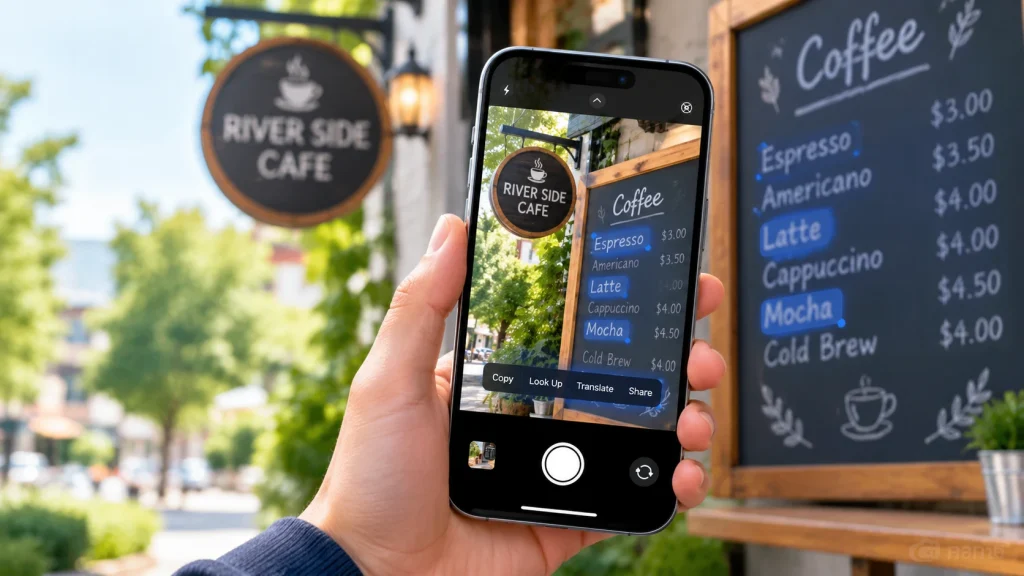
- Live Text in the Camera. Point the camera at a sign, menu or page, then tap the Live Text button. You can copy the text or act on it without taking a picture.
- Lift a subject out of a photo. In iOS 16 and later you can isolate the subject of a photo and copy or share it in apps such as Messages or Mail.
- Macro Control. Newer Pro models switch to the ultra-wide lens automatically when you move very close to a subject. If the switching is distracting, go to Settings → Camera → Macro Control and turn on the manual toggle (secondary source; iPhone 13 Pro and later).
Typing and text tips (8–13)
- Turn the keyboard into a trackpad. Touch and hold the spacebar until the keys go blank, then slide your finger to move the cursor to the exact spot you want to edit.
- Shake to undo. Shake the iPhone and tap Undo Typing to remove what you just typed or pasted. Shake again to redo. If it triggers by accident, switch it off in Settings → Accessibility → Touch.
- Undo and redo with three fingers. Swipe left with three fingers to undo and swipe right to redo, or double-tap with three fingers. Some third-party apps do not support these gestures.
- Text Replacement. Go to Settings → General → Keyboard → Text Replacement and tap the plus sign. Set a short abbreviation that expands into a full phrase, such as an email address or a sentence you type often.
- Long-press for accents. Touch and hold a letter such as e to pick a variant like é or è.
- Character Preview. The small pop-up that appears above each key you press can be turned off in the keyboard settings. Some people prefer this for privacy when typing in public.
Control Center, Back Tap and shortcuts (14–19)
- Turn on Back Tap. Go to Settings → Accessibility → Touch → Back Tap. Choose Double Tap or Triple Tap, pick an action, then tap the back of the iPhone to trigger it. Apple lists iOS 14 or later and iPhone 8 or later. Actions include opening Control Center, taking a screenshot and Accessibility Shortcuts such as Magnifier, AssistiveTouch and VoiceOver.
- Back Tap plus Shortcuts. Any shortcut you add in the Shortcuts app appears in the Back Tap list, so a double tap can open an app that Settings does not offer directly. Tom’s Guide also suggests assigning scroll up and scroll down to the two gestures for one-handed reading.
- Rebuild Control Center. Go to Settings → Control Center to add or remove controls. In iOS 18 and later you can also reorder and resize controls and browse a Controls Gallery.
- Make the Action button do more. On iPhone 15 Pro and the iPhone 16 models, open Settings → Action Button and swipe through the options. Besides Silent Mode you can pick Camera, Flashlight, Voice Memos, Focus or Translate.
- Put a Control on the Action button. In iOS 18, the Action button can run a Control Center function. Pick Controls and choose one. Press and hold the button to use it.
- Run Shortcuts from several places. Apple’s Shortcuts guide lists Control Center, the Action button, Siri and Back Tap as ways to start a shortcut, so one automation can be reached from whichever is closest.
Battery, privacy and safety (20–27)
- Turn on Stolen Device Protection. Go to Settings → Face ID & Passcode (Touch ID & Passcode on Home-button models), enter your passcode, then tap Stolen Device Protection. It needs iOS 17.3 or later, two-factor authentication, a passcode, Face ID or Touch ID, Significant Locations and Find My. Apple says it must be on before the phone is lost or stolen.
- Know what it blocks. Away from familiar places such as home or work, actions like using saved passwords, erasing the phone or turning off Lost Mode need Face ID or Touch ID, with no passcode fallback. Changing your Apple Account password or passcode adds a one-hour security delay.
- Choose “Always” for the delay. Under Require Security Delay you can pick Always so the extra checks apply even at home.
- Lock an app. Touch and hold an app icon and choose the lock option. With Stolen Device Protection on, a locked app needs Face ID or Touch ID, with no passcode option, when you are away from familiar locations. Available on recent iOS versions.
- Know where Lockdown Mode is. Settings → Privacy & Security → Lockdown Mode. It is an extreme option for people who may face sophisticated attacks, and it disables many features, so most people should leave it off.
- Low Power Mode. Settings → Battery → Low Power Mode limits background activity. If the phone switches it on by itself, it returns to normal after charging to 80%. Some tasks run more slowly while it is on.
- Optimized Battery Charging. Settings → Battery → Battery Health, then turn it on. Apple says it learns your routine and waits to finish charging past 80% until you need the phone. On iPhone 15 and later, BGR also points to a separate Charge Limit setting.
- Read your battery history. Settings → Battery shows usage for the last 24 hours or up to 10 days, with per-app usage and suggestions you can tap to open the related setting. In iOS 26, an Adaptive Power option appears under Power Mode (secondary source).
Everyday tricks and accessibility (28–30)
- Sound Recognition. Go to Settings → Accessibility → Sound Recognition, turn it on, then tap Sounds to choose which ones to detect, such as fire alarms or doorbells. Your iPhone shows a visible and vibrating alert. Apple warns not to rely on it in high-risk or emergency situations.
- Magnifier. Turn it on in Settings → Accessibility → Magnifier and your iPhone becomes a magnifying glass for small print, such as a menu. It can also be assigned to Back Tap through an Accessibility Shortcut.
- Export Notes as Markdown (iOS 26). Cult of Mac reports that the Notes app in iOS 26 can export notes in Markdown format, which helps if you write in plain-text tools.
A note on newer features
Many “hidden feature” lists for iOS 26 mix real settings with features that depend on your model, language or region. Apple Intelligence features in particular are not available on every iPhone, so check that your phone supports a feature before you look for it.
FAQ
Which iPhones support Back Tap? Apple’s support page says iPhone 8 or later running iOS 14 or later.
Can I turn Stolen Device Protection off? Yes. Go back to Settings → Face ID & Passcode → Stolen Device Protection. If you are away from a familiar location, a security delay starts first. Apple advises turning it off before you sell, give away or trade in the phone.
Does Optimized Battery Charging replace Low Power Mode? No. Optimized Battery Charging only changes how the phone charges. Low Power Mode changes what it does while running on battery, and you can use both together.
Why can’t I find a setting from this list? The feature may need a newer iOS version or a specific model, such as the Action button on iPhone 15 Pro and iPhone 16 models. Update iOS and check again.
Is it safe to use Lockdown Mode every day? It is designed for people who may face sophisticated attacks and it turns off many features, so most people do not need it.
Sources
Read in full (via page fetch):
- Apple Support: Use Back Tap on your iPhone
- Apple Support: About Stolen Device Protection for iPhone
- Apple Support: Charge and monitor the iPhone battery
Read as search excerpts only (not opened in full):
- Apple Support: Copy and translate text from photos
- Apple Support: Use locked apps with Stolen Device Protection
- Apple Support: Shortcuts User Guide, Action button
- MacRumors: How to take a quick burst of photos
- MacRumors: Customize the Action button on iPhone 16
- MacRumors: Assign Control Center functions to the Action button
- MacRumors: Five iPhone security features
- How-To Geek: How to undo on iPhone
- iDropNews: iPhone keyboard tricks
- Yahoo Finance: 8 essential keyboard tips
- Tom’s Guide: Launch apps by tapping the back of your iPhone
- BGR: Simple iPhone settings for battery life
- 9to5Mac: Apple Accessibility site revamp (quotes Apple’s Sound Recognition steps)
- Cult of Mac: Hidden iOS 26 features
Secondary or third-party (lower confidence):
- Apple Support Community: burst mode thread
- Gadget Hacks: Burst mode on iPhone SE
- TapSmart: Bursts and QuickTake
- DB Labs: 15 hidden iPhone camera features
- iGeeksBlog: Undo and redo text on iPhone
- Brick: Adaptive Power vs Optimized Charging vs Low Power Mode
- How-To Geek: Customize Control Center
Checked 9 November 2026.
About the Author

Aman Ullah Hridoy
Founder & Content Creator
I’m Aman Ullah Hridoy, the founder of Technolozia. I write about technology, software, gadgets and practical how-to guides to help readers understand tech and make smarter digital choices.