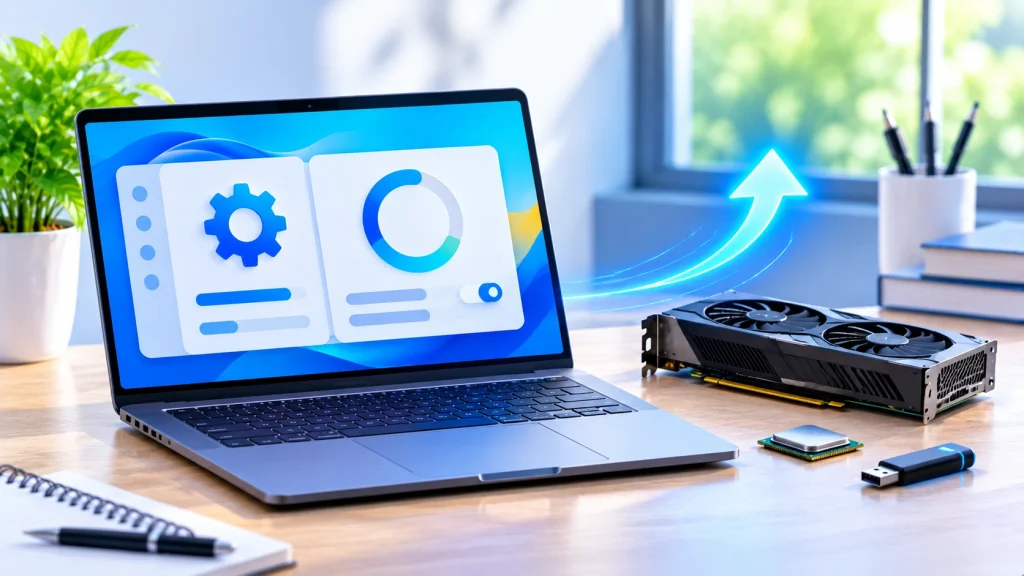
The safest way to update drivers on Windows 11 is through Windows Update. Go to Settings, Windows Update, Advanced options, Optional updates, and install any driver updates listed there, then restart. If one device is misbehaving, open Device Manager, right-click it, choose Update driver, then Search automatically for drivers. For graphics cards, use your GPU maker’s app or website, and for laptops, check your PC maker’s support page. You do not need a third-party driver updater tool. If you are not having a problem, you often do not need to update at all, because Windows installs recommended drivers automatically.
Before you start
Do you need to update? Microsoft says Windows 11 uses Windows Update to install recommended drivers automatically, and lets you install optional driver updates manually. Optional drivers are not installed automatically. Update when a device is not working properly, a game or app asks for a newer driver, or Windows shows a driver error. If everything works, there is no urgent need.
Create a restore point first. Microsoft’s System Protection page explains that restore points are snapshots that let you return to an earlier state without affecting personal data. It also says System Protection is not turned on by default. To create one:
- Select Start, type “Create a restore point” and open it.
- On the System Protection tab, select Create.
- Type a description, such as “Before driver update”, and select Create.
If System Protection is off for your drive, select Configure and choose Turn on system protection first.
Know which device you are updating. Open Device Manager (type it into the Start menu search). Devices with problems often show a yellow exclamation mark, as Microsoft notes on its error code page. Note the device name before you begin.
Method 1: update drivers with Windows Update
This is the easiest and safest method, and Microsoft recommends it for audio drivers on its audio drivers page. The steps below follow Microsoft’s driver updates page:
- Select Start, then Settings, then Windows Update.
- Select Check for updates and install anything offered.
- Go back to Windows Update and select Advanced options.
- Make sure Receive updates for other Microsoft products is turned On.
- Under Additional options, select Optional updates.
- If driver updates are listed, tick the ones you want and select Download and install.
- Restart your PC. Microsoft says to restart even if the updates did not ask for it.
If no driver updates are listed, Windows has nothing newer for your hardware. That does not always mean your driver is the latest one, because the manufacturer’s own site may have a newer version (see Method 3).
Method 2: update one driver in Device Manager
Use this when a single device (sound, Bluetooth, network, display) has a problem. The steps match Microsoft’s Bluetooth and audio driver guides:
- Select Start, type Device Manager and open it.
- Expand the category, such as Sound, video and game controllers, Bluetooth, Network adapters or Display adapters.
- Right-click the device and select Update driver.
- Choose Search automatically for drivers.
- Follow the on-screen instructions, then restart your PC.
If Windows says the best driver is already installed, Microsoft notes that you may still find a newer version on your PC manufacturer’s website.
Install a driver you downloaded yourself. If you have downloaded a driver from the manufacturer, right-click the device, select Update driver, then Browse my computer for drivers, and point Windows to the folder. Microsoft uses this method in its guidance for certain NVIDIA display adapters. If the download is a ZIP file, extract it into a new folder first. If the download is an installer (.exe), just run it instead.
Method 3: get drivers from the manufacturer
When Windows Update has nothing newer, Microsoft says to check the hardware manufacturer’s website for the latest driver compatible with your version of Windows. This is also the usual route for graphics cards and laptop-specific hardware.
- PC or laptop maker (Dell, HP, Lenovo, ASUS and others): open the support page for your exact model and look for the drivers or downloads section. Microsoft also suggests checking your PC manufacturer’s site for BIOS, UEFI or firmware updates when hardware such as Bluetooth misbehaves.
- NVIDIA graphics cards: use the NVIDIA App, or download a driver from NVIDIA’s driver page. One 2026 guide from Evetech says the NVIDIA App has replaced GeForce Experience.
- AMD graphics cards: use AMD Software: Adrenalin Edition, then check for updates, or download from AMD’s support page.
- Intel graphics and other Intel hardware: use the Intel Driver & Support Assistant, which scans your PC for Intel hardware and notifies you of available updates.
Always download from the manufacturer’s own site, choose the exact model and Windows 11, and restart when the installer finishes. If you are unsure of your device model, open Device Manager, right-click the device, choose Properties, and check its name and Details tab.
Method 4: roll back, reinstall or uninstall a driver
If a new driver causes problems, or an update did not help, try these fixes. Microsoft describes them on its Bluetooth and audio pages.
Roll back a driver. Use this if the device worked before a recent driver or Windows update.
- Open Device Manager and expand the device category.
- Right-click the device and select Properties.
- Open the Driver tab and select Roll Back Driver (if the button is available).
- Follow the on-screen instructions and restart.
Uninstall and reinstall.
- In Device Manager, right-click the device and select Uninstall device.
- For a damaged driver, Microsoft’s audio guide ticks the box to remove the driver for this device. Only do this if you have a replacement driver to install.
- Restart your PC. For many devices, such as Bluetooth, Windows reinstalls the driver automatically after the restart.
Pick a driver from a list. In Update driver, choose Browse my computer for drivers, then Let me pick from a list of available drivers on my computer. Microsoft uses this for some audio problems.
Last resort: restore point. If a rollback does not work, you can restore your PC from a system restore point, according to Microsoft’s audio troubleshooting page.
Staying safe when updating drivers
- Use trusted sources. Windows Update and the hardware maker’s own website are the safe places to get drivers.
- Be careful with driver updater programs. You do not need one to update drivers, because every step above uses Windows or the manufacturer. Unknown tools can install the wrong driver. If you do use one, download it only from its official site.
- Know that Windows checks driver signatures. Microsoft’s Windows Driver Policy page says Windows can block kernel-mode drivers that are not properly signed through Microsoft’s certification process. If a driver is blocked, Microsoft’s advice is to check Windows Update, then Optional updates, for a certified version. Microsoft recommends keeping the policy enabled.
- Do not update everything at once. Update one driver, restart, and test before you move on.
- Do not interrupt an update. Keep your laptop plugged in until the installation and restart finish.
Common problems and fixes
| Problem | What to try |
|---|---|
| Windows says the best driver is already installed | Check your PC or hardware maker’s website for a newer version |
| No driver updates under Optional updates | Make sure Receive updates for other Microsoft products is On, then check the manufacturer’s site |
| Device shows a yellow exclamation mark | Update the driver, then reinstall it if that fails |
| A new driver made things worse | Use Roll Back Driver in the device’s Properties |
| Rollback button is greyed out | Uninstall the device and restart, or restore from a restore point |
| Graphics driver update fails | Install the manufacturer’s driver, or use Update driver then Browse my computer for drivers |
| Windows blocks an unsigned driver | Look for a certified version through Windows Update or from the vendor |
| Windows 11 update blocked by a driver (such as certain NVIDIA display adapters) | Follow Microsoft’s guidance to update the display driver first |
Microsoft’s guidance for certain NVIDIA display adapters, for example, says to check for updates first. If Windows Update does not offer the display driver, update it in Device Manager and, if needed, install a downloaded driver using Browse my computer for drivers.
FAQ
How do I update drivers on Windows 11? Go to Settings, Windows Update, Advanced options, Optional updates, then install any driver updates and restart. For a single device, use Device Manager and choose Update driver, then Search automatically for drivers.
How do I check for driver updates on Windows 11? Check Windows Update first, including Optional updates. Then check the manufacturer’s website or app for your graphics card, laptop or other hardware.
Does Windows 11 update drivers automatically? It installs recommended drivers through Windows Update automatically. Optional drivers are not installed automatically, so you choose them yourself.
How do I update all drivers at once? Windows Update’s Optional updates page lets you select multiple driver updates and install them together. For hardware with its own tool, such as graphics cards, update through the vendor’s app.
Is it safe to use a driver updater tool? You do not need one. Windows Update and the manufacturer’s site are the safer sources. If you choose a tool, use it only from its official site and create a restore point first.
How do I roll back a driver? In Device Manager, right-click the device, select Properties, open the Driver tab and choose Roll Back Driver, if available.
Should I always update my graphics driver? Not always. Update when a game or app needs it, when you have display problems, or when your GPU maker recommends it.
Sources
- Microsoft: Automatically get recommended and updated hardware drivers
- Microsoft: Update audio drivers in Windows
- Microsoft: Fix sound or audio problems in Windows
- Microsoft: Update Bluetooth drivers in Windows
- Microsoft: Fix Bluetooth disappeared in Windows
- Microsoft: Fix graphics device problems with error code 43
- Microsoft: The Windows Driver Policy
- Microsoft: System Protection (restore points)
- Microsoft: Guidance for updating to Windows 11, version 24H2 with certain NVIDIA display adapters
- Evetech: GPU driver maintenance guide
Checked 8 November 2026.
About the Author

Aman Ullah Hridoy
Founder & Content Creator
I’m Aman Ullah Hridoy, the founder of Technolozia. I write about technology, software, gadgets and practical how-to guides to help readers understand tech and make smarter digital choices.