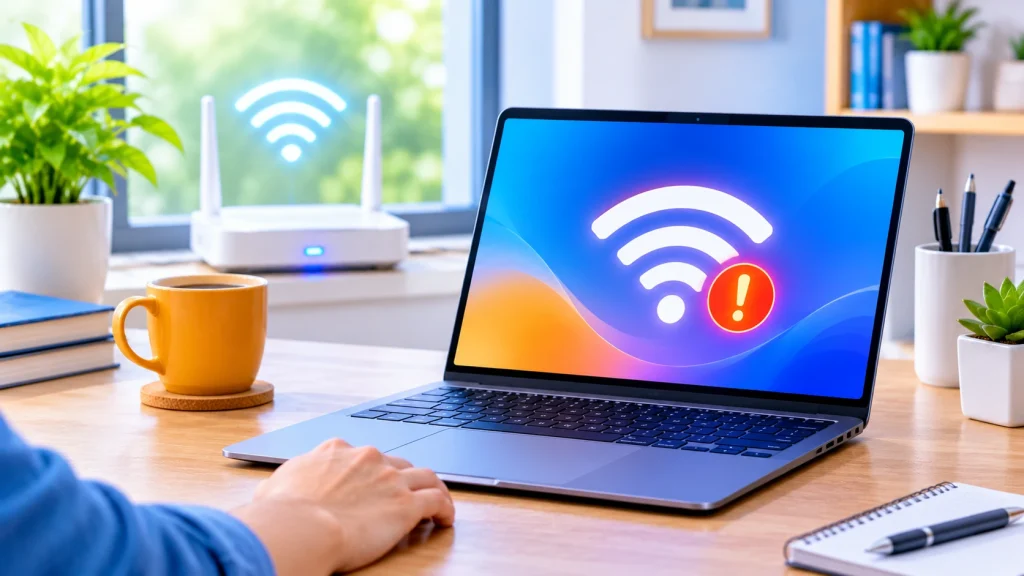
“Connected, no internet” means your device has joined the WiFi network, but the network is not passing traffic to the internet. The cause is either your device, your router and modem, or your internet provider. Start by checking whether other devices have the same problem. If they do, unplug your modem and router for about 15 seconds, plug them back in and wait a few minutes. If only one device is affected, turn WiFi off and on, forget the network and join again, then check proxy, VPN and DNS settings. This guide lists 12 fixes in the order that solves most cases fastest, with steps for Windows, iPhone and Android.
First, find out where the problem is
A two-minute test saves a lot of random clicking. Google’s Pixel help page suggests three checks:
- Phone or device: try the same WiFi network on another device. If other devices work, the problem is most likely your device.
- Network: try your device on a different WiFi network, such as a friend’s home. If it works there, the problem is most likely your own network.
- Internet: if your device joins the network but nothing loads, the problem is most likely your internet connection.
Apple gives similar advice: if you cannot get online on your other devices either, there may be a service outage, and you should contact your internet provider.
| What you see | Most likely cause | Start with |
|---|---|---|
| Only one device fails | That device’s settings | Fixes 2 to 5, then 7 to 11 |
| All devices on your WiFi fail | Router, modem or provider | Fixes 1, 6 and 12 |
| Only one network fails | That network or its sign-in page | Fixes 1 and 12 |
Fixes 1 to 4: the quick resets
1. Restart your modem and router. Microsoft says restarting the modem and router creates a new connection to your internet provider, and everyone on your WiFi will be briefly disconnected. Google’s Pixel help gives these steps for a home setup:
- Unplug the router and modem power cords for 15 seconds.
- Plug them back in and check that the cables are secure.
- Wait a few minutes until the lights look normal (check the manual if unsure).
If you have a single modem and router combination device, you only need to restart that one device.
2. Restart the device that has the problem. Google’s Android help lists restarting your phone as the first general fix for a bad connection. Apple’s advice for iPhone is also to restart the device and, if needed, the modem and router.
3. Turn WiFi off and on, or toggle airplane mode. On Android, Google suggests turning airplane mode on, waiting 10 seconds, then turning it off. On Windows, Microsoft lists turning WiFi off, on, and reconnecting as the first step for “limited connectivity”.
4. Switch between WiFi and mobile data. Google’s Android help suggests this to see if there is any difference. If mobile data works and WiFi does not, the problem is with the WiFi network, not your phone’s signal.
Fixes 5 to 8: refresh the connection on your device
5. Forget the network and join again.
- Windows: go to Settings, Network & internet, Wi-Fi, then Manage known networks. Select your network, click Forget, then reconnect and enter the password (Microsoft).
- Android (Pixel): Settings, Network & internet, Internet, then touch and hold the network name and tap Forget. Turn WiFi off and on, tap the network and re-enter the password.
Make sure you have the right password and are joining the right network.
6. Try the other frequency band. Microsoft notes that many routers broadcast both 2.4 GHz and 5 GHz networks that appear as separate names. If you see both, try the other one. Apple gives the same tip for its devices.
7. Run the Windows network troubleshooter. Microsoft’s first step is to go to Start, Settings, Network & internet, Status, scroll down and select Network troubleshooter, then follow the prompts.
8. Renew your IP address and clear the DNS cache (Windows). For the “limited connectivity” message, Microsoft lists these steps. Open Command Prompt as administrator and run each command, pressing Enter after each:
ipconfig /release
ipconfig /renew
ipconfig /flushdns
Also check your IP address. Microsoft says to make sure it is not an address starting with 169.254. If it is, restart your router (fix 1) and run the commands again.
Fixes 9 to 12: settings, resets and the router
9. Turn off proxy, VPN and security software. On Windows, go to Settings, Network & Internet, Proxy and turn off any manual proxy (Microsoft). On iPhone, Apple says VPN, profiles, firewalls and filters can cause network trouble. Search Settings for those words, and turn off or delete anything you do not need, unless your workplace requires it. Then restart.
10. Change your DNS servers. DNS is like a phone book for websites, and a faulty one can make pages fail even when WiFi is connected. Google Public DNS uses 8.8.8.8 and 8.8.4.4. Cloudflare’s alternative is 1.1.1.1 and 1.0.0.1. On Windows you set this in the adapter’s Internet Protocol Version 4 properties under “Use the following DNS server addresses”. On iPhone, tap the info icon next to the network, then Configure DNS and choose Manual. Google advises:
- Write down your current DNS settings first, so you can switch back.
- Use at least two different addresses, not the same one twice.
- To undo it, choose the option to get DNS addresses automatically.
11. Reset network settings (last resort for the device).
- Windows: Microsoft’s command sequence is
netsh winsock reset, thennetsh int ip reset, followed by theipconfigcommands from fix 8, run in an administrator Command Prompt. - iPhone: Settings, General, Transfer or Reset, Reset, Reset Network Settings. Apple warns this removes saved WiFi networks and passwords, cellular settings, and VPN and APN settings, so use it only if other fixes fail.
- Pixel/Android: Settings, System, Reset options, Reset Bluetooth & Wi-Fi. Google notes this deletes your saved WiFi connections.
Also set the date and time to automatic. Google says a wrong date and time on a phone can cause WiFi problems.
12. Check the router and sign-in page. Apple recommends updating the router’s firmware and making sure the router supports your device. If you are on a hotel, cafe or office WiFi, you may need to sign in. Google’s Pixel help says that after forgetting and rejoining you may get a notification to sign in, and you must tap it and accept the terms before the internet works. If you manage the router, Microsoft also suggests changing the wireless channel to reduce interference. If none of this works, move on to the next section.
When to contact your internet provider
If every device on your WiFi shows “connected, no internet” even after restarting the modem and router, the fault is probably outside your home. Google’s Pixel help says that if the modem or router lights do not look right after a restart, there could be an issue with the modem, router or internet connection, and your provider may have an outage or need to reset your connection. Apple likewise says that if no device can get online, there may be a service outage.
Before you call, have this ready:
- Which devices fail and which work, including whether mobile data works.
- What the modem and router lights look like after a restart.
- What you already tried, such as the restart, forgetting the network, and the DNS change.
How to prevent it coming back
- Update your router. Apple recommends keeping router firmware up to date.
- Use one name for each band. Apple says that giving your 2.4 GHz, 5 GHz and 6 GHz bands different names can make devices connect less reliably (the apple page’s advice is to use the same name on every band).
- Keep enough addresses available. Apple notes that routers have a limited number of IP addresses to hand out, and if they run out, new devices cannot communicate. A shorter DHCP lease time helps the router reuse old addresses.
- Keep your devices updated. Google recommends checking for the latest system update after you reconnect, since updates can fix connection issues.
FAQ
Why does my WiFi say connected but no internet? Your device has joined the router’s network, but traffic is not reaching the internet. The cause can be your device, the router or modem, DNS or proxy settings, or an outage with your internet provider.
How do I fix “connected, no internet” on Windows? Run the Network troubleshooter, forget and rejoin the network, then run ipconfig /release, ipconfig /renew and ipconfig /flushdns in an administrator Command Prompt. Also turn off any manual proxy.
How do I fix it on an iPhone? Check that Airplane Mode is off, restart the iPhone and your router, and check for VPN or security profiles. If it still fails, reset network settings. Apple says to contact your internet provider if the device connects but still cannot get online.
How do I fix it on Android? Turn WiFi and airplane mode off and on, restart the phone, then forget the network and join again. If needed, use Reset Bluetooth & Wi-Fi in Reset options.
Should I change my DNS? It is a reasonable step if websites fail to load but the connection looks fine. Write down your current settings first and use two different DNS addresses, as Google advises.
Is it my phone or my router? Try another device on the same WiFi, and your phone on a different network. That shows which side the fault is on.
Sources
- Microsoft: Fix Wi-Fi connection issues in Windows
- Microsoft: Get connected when setting up your Windows device
- Apple: If you can’t connect to Wi-Fi on your iPhone or iPad
- Apple: Check for VPN and other third-party security software
- Apple: Recommended settings for Wi-Fi routers and access points
- Google: How to fix Wi-Fi connection problems (Pixel)
- Google: Fix internet connection problems on Android devices
- Google: Public DNS getting started
- Cloudflare: 1.1.1.1 DNS setup
Checked 8 November 2026.
About the Author

Aman Ullah Hridoy
Founder & Content Creator
I’m Aman Ullah Hridoy, the founder of Technolozia. I write about technology, software, gadgets and practical how-to guides to help readers understand tech and make smarter digital choices.