
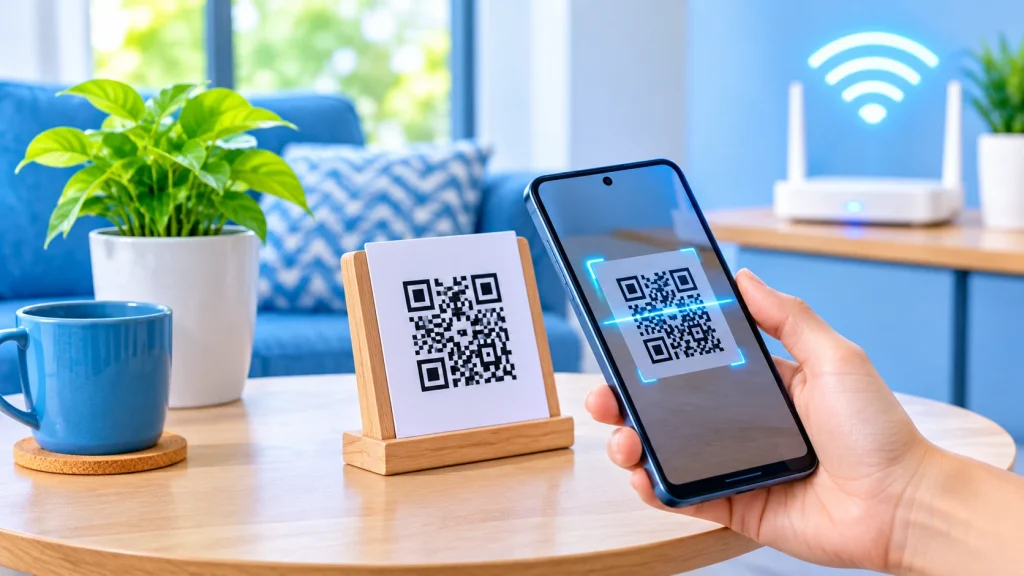
The fastest way to create a WiFi QR code is to open a free QR code generator, choose the WiFi type, enter your network name, password and security type, then download the image. It takes about two minutes. If you have an Android 10 or newer phone, you can also generate one straight from your WiFi settings without any website.
When a guest scans the code with their phone camera, their phone offers to join the network, so nobody has to read out or type a long password. This guide covers three ways to make one, how to test it and how to keep it safe.
One warning first: the password is stored inside the code in plain text, so anyone who can scan it can join your network. Treat a printed WiFi QR code like a written-down password.
What is inside a WiFi QR code
A WiFi QR code is just a line of text turned into a picture. Phones recognise the text format and offer to join the network. QuickChart’s documentation gives the structure as WIFI:T:network_type;S:network_name;P:password;H:hidden;;.
| Field | Meaning | Example |
|---|---|---|
| T | Security type: WPA (most common, also used for WPA2 and WPA3 networks), WEP (old), or nopass (open network) | T:WPA |
| S | Network name (SSID), exactly as it appears, including capital letters | S:HomeNetwork |
| P | Password, left out for open networks | P:MyPassword123 |
| H | Optional. true if the network is hidden | H:true |
A complete example is WIFI:T:WPA;S:HomeNetwork;P:MyPassword123;;. Because the format is a shared standard, a code made on one brand of phone can be read by another. Asurion notes that most modern iPhones and Android phones can scan and connect to a code made on either platform, though some older phones may need a separate scanner app.
A network name is limited to 32 characters and a WPA password to 63, according to Inventive HQ.
Method 1: use a free online WiFi QR code generator
This works on any phone or computer and is the best choice if you want a printable code. You need your exact network name and password.
- Find your details. Check your router label or WiFi settings for the network name (SSID), password and security type. Names and passwords are case-sensitive.
- Open a QR code generator. Choose a free tool that offers a WiFi type. Several generators say they create the code in your browser so the password is never uploaded, which is the safer design. Avoid ones that require an account or push you to a paid plan to download.
- Select WiFi as the QR code type. The form then asks for network details instead of a web address.
- Enter the network name, password and security type. Pick WPA/WPA2 for most home and office networks, WEP for very old equipment, or no password for an open network. Tick the hidden option only if your network does not broadcast its name.
- Generate and download the code. Save it as a PNG for screens and quick printing, or as an SVG or PDF if you want a large, sharp print.
- Test it before you share it. Scan the code with a phone that is not already joined to the network (see the testing section below).
One thing to avoid: do not use a “dynamic” or tracked code for WiFi. A WiFi code should hold the network details directly, as the format above shows, rather than point to a web page that could change or log scans.
Method 2: create one from your phone’s settings
You may not need a website at all. Your phone can already show a QR code for the network it is connected to. This is handy for sharing with a guest on the spot. The code appears on screen, and you can screenshot it to keep it.
Android (Android 10 or later). Per Digital Trends:
- Go to Settings, then Connections or Network & internet, then Wi-Fi or Internet.
- Tap the gear icon beside your connected network.
- Tap the QR code icon or the Share option.
- Confirm with your fingerprint, face scan, PIN or pattern. The QR code appears.
- Let your guest scan it, or use the Share icon to send it by Quick Share, email, text or another app.
Only the phone that creates the code needs Android 10 or later. Any phone can scan it, including an iPhone.
iPhone. Asurion describes these steps:
- Open Settings and tap Wi-Fi.
- Tap the blue information icon beside your current network.
- Select Share Network, or choose Password and verify with Face ID or Touch ID.
- When the QR code appears, take a screenshot to save it or use the Share icon.
Menu names differ between phone brands and software versions. If you cannot find the option on your iPhone, use Method 1 instead.
The limit of this method is that the phone must already be joined to the network, and it makes one code at a time. A generator is better when you want a poster for a cafe, office or holiday home.
Method 3: build the text yourself
If you want full control, or your password has unusual characters, write the WiFi text yourself and paste it into any generator that makes a plain text QR code. Use this pattern:
WIFI:T:WPA;S:HomeNetwork;P:MyPassword123;;For a hidden network, add H:true; before the final semicolon. For an open network, use T:nopass; and leave out the password.
The tricky part is special characters. Characters that the format uses as separators must be escaped with a backslash. According to Image-Charts, these are the backslash, semicolon, comma, colon and double quote, so a password of p;ss is written p\;ss. QuickChart gives the same rule for semicolons, colons, commas and backslashes.
| Password you type | What goes in the text |
|---|---|
| pass;word | pass\;word |
| pass:word | pass\:word |
| pass,word | pass\,word |
| pass\word | pass\\word |
If the code does not work after you add special characters, an unescaped character is the most likely cause, because the phone splits the text at each unescaped semicolon. Re-check each character, regenerate the code and test it again. A tool that builds the text for you in the WiFi type, as in Method 1, does this escaping automatically in most cases.
Scan, test and place your code
How guests scan it. Per Digital Trends, any phone can scan a WiFi QR code, including an iPhone running iOS 11 or later. Open the camera, point it at the code and tap the prompt to join. If the camera does not react on Android 10 or later, go to WiFi settings, choose Add network and use the QR scanner. Older Android phones may need Google Lens.
Test before you print. Ask someone whose phone has never joined your network to scan the code. If you only test on your own phone, it may already know the network and hide a mistake in the password or security type. A guide from Scanapp also notes that Windows 11 and macOS computers cannot join a network by scanning a code directly, so laptop users will still type the password or scan with a phone first.
Where to put it.
- Print it at least a few centimetres wide on plain white paper with dark ink. Avoid glossy surfaces that reflect light.
- Put it where guests can reach it, such as a fridge door, a guest-room shelf, or beside the counter in a shop.
- Add the network name in plain text under the code, so people can join by hand if scanning fails.
- Keep it away from public windows or outside walls if the network is for private use.
Security and privacy tips
A WiFi QR code is only a way to write down your password in a form that cameras can read. As QuickChart points out, the password is stored in plain text inside the code, so anyone who can scan it can read it.
- Use a guest network. Most routers let you create a separate guest network. Put the QR code on that one and keep your main network, with your computers and smart devices, private.
- Treat the printout like the password. Do not post it on social media or in photos where the code is visible.
- Change the password if the code leaks. Old codes stop working as soon as the password changes, so create a new code after that.
- Use WPA2 or WPA3. Pick WPA/WPA2 as the security type unless your router is very old. Avoid WEP if you can.
- Respect the length limits. Inventive HQ lists a maximum of 32 characters for the network name and 63 for a WPA password.
- Be careful with online tools. Prefer a generator that works in your browser and does not ask you to sign in. If you are worried, use your phone’s built-in option from Method 2, because the password then never leaves your device.
FAQ
Can I make a WiFi QR code for free? Yes. Your phone can create one in its WiFi settings, and many online generators offer a WiFi type at no cost. You do not need a paid plan for a basic code.
Does a WiFi QR code work on both iPhone and Android? Yes. The format is universal, so a code made on one type of phone can be scanned by the other. iPhones on iOS 11 or later scan it with the normal camera app.
Why will my code not connect? The usual causes are a typo in the password, the wrong security type, or an unescaped special character such as a semicolon. Check each detail, remake the code and test it on a phone that has never joined the network.
Will the code stop working if I change my password? Yes. The password is stored inside the code, so you need to generate a new one after any change.
Is it safe to put a WiFi QR code on the wall? It is safe for a guest network, but anyone who sees it can join. Use a guest network and change the password if you think it has spread too far.
Can a laptop scan the code? Not directly on Windows 11 or macOS, according to Scanapp. Scan it with a phone to read the password, or type it in by hand.
Sources
- Digital Trends: How to share Wi-Fi settings on Android
- Asurion: How to share home network info with a QR code
- QuickChart: WiFi QR codes
- Image-Charts: WiFi QR code generator
- Inventive HQ: How to create a WiFi QR code
- Scanapp: How to connect to WiFi by scanning a QR code
Checked 8 November 2026.
About the Author

Aman Ullah Hridoy
Founder & Content Creator
I’m Aman Ullah Hridoy, the founder of Technolozia. I write about technology, software, gadgets and practical how-to guides to help readers understand tech and make smarter digital choices.